
Navigation
Menus list the options available to you. To select an item simply click it.
Most GuildLink features start with a view screen. From here you can choose an item such as an SOP and then click Edit to open and edit that item. You can also choose to add a new item, print the selected item or print everything.
Add a new item – opens the edit screen and adds a new item
Edit the selected item – opens the edit screen and loads the selected item for editing
Prints a report with details of all items. The filter is also applied to the report so your report will only show pages for the matching items.
Select an item and choose to view just that item.
Expanding Grids
Section titled “Expanding Grids”Some grids have a drill down feature – the icon looks like this
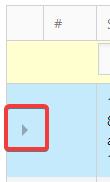
When you see the icon in the first column of a grid it means that you can drill down, like this
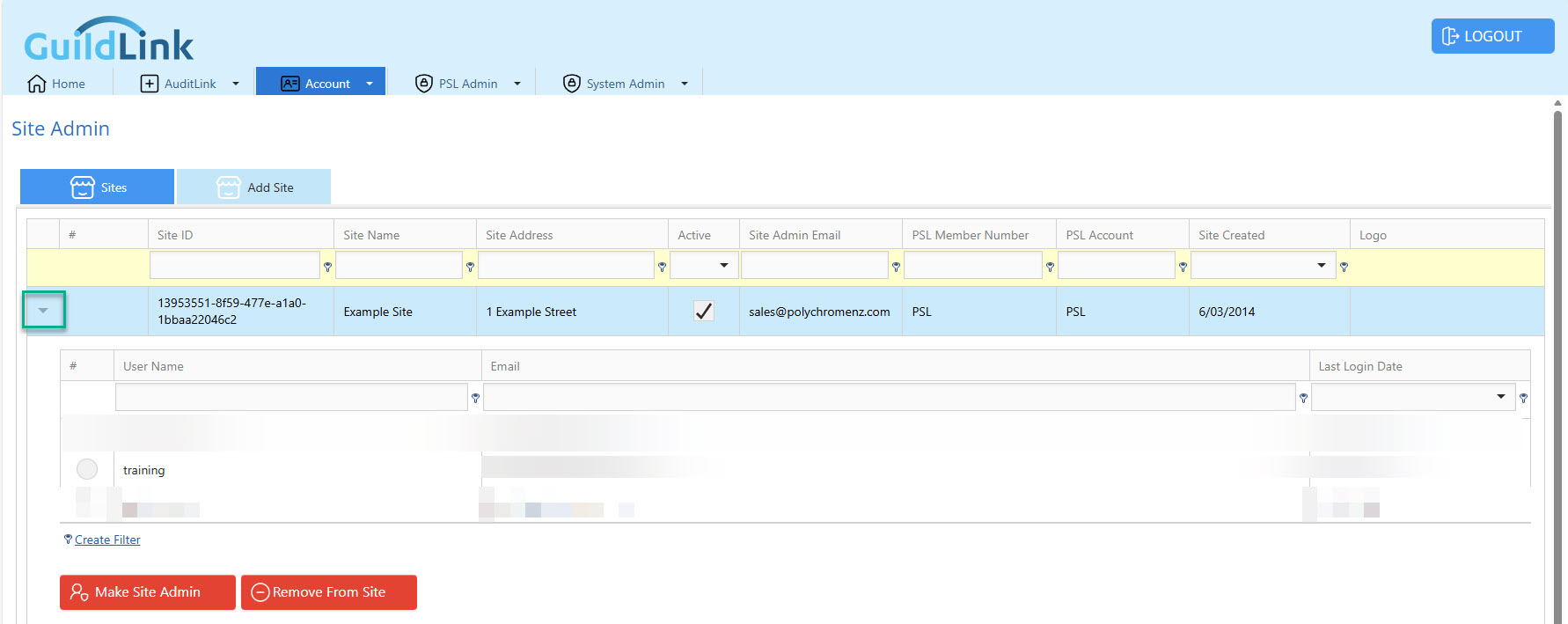
Some data blurred to protect privacy
Child Data
Section titled “Child Data”Some grids (such as SOP Staff Reviews) allow editing, deleting and adding of child data. Child data belongs to this record. For example, an SOP can have a list of Staff Review (records of which staff job titles must review this SOP). The SOP item is the parent and has child records that belong to it.
Edit the selected child item
Add a new child item
Delete the selected item (you will be prompted for confirmation)