
Edit SOP
This is where you maintain an Standard Operating Procedure.
Internal Ref
This is the internal Ref you use for this SOP and it is a required field. Shared content that you import will always have an existing Internal Reference.
Version
A document can also have a version number. When you make a new version of an SOP the version number is incremented by one.
Created By
Choose the staff member who created this SOP
Created
The date this SOP was created – this defaults to the current date when adding a new SOP
Approved by
You can optionally choose the staff member who approved this SOP
Document Heading
Choose from the list of predefined headings.
Document Category
Choose from the list of predefined Categories.
Document Name
Enter a name to describe the SOP
Document Status
A document would usually start as draft and later become current. By default the view SOPs screen excludes SOPs that have been replaced or that are Obsolete. When a document version is made the old SOP is auto set to replaced.
Comments
These are optional but allow you to add prompts etc. to assist when carrying out an SOP.
Purpose
Section titled “Purpose”This is where you detail the SOP purpose. Choose to either edit the Purpose text or the comments.
Procedure
Section titled “Procedure”This is where you detail the SOP procedure. Choose to either edit the Procedure text or the comments.
Document Review Schedule
Section titled “Document Review Schedule”Here you specify which role is responsible for the maintenance of this SOP and how often the content should be reviewed. It is possible to see items that are overdue in the View SOPs screen if you set a next review date. These schedule refers to the maintenance of the SOP document content.
Review Frequency
How often this SOP should have its content reviewed. It is common to spread the work of updating SOP content across the year so that you only have for example 10-20 to look at each month rather than waiting for the audit notice and having a mad rush to update all of the content.
Role responsible for review
Choose a staff role that will update the SOP such as the pharmacist
Next review date
Choose when you will next review the content of this SOP.
Staff Review
Section titled “Staff Review”Here you can set how often this SOP must be reviewed for each job title and how frequently such as annually or every two years.
Staff Review Requirements
Staff Review Audit
Section titled “Staff Review Audit”Reviews are automatically sorted to show the most recent review first. When staff review SOPs and confirm that they have read and understood the SOP a review record is added and you can see these here. You can also see all review records for an individual staff member in the Edit Staff screen.
You can manually add staff reviews here but its much more work and you don’t have the benefit staff confirming that they viewed the SOP.
You can print the Audit by choosing the SOP Staff Review Audit Log menu item
Staff Review Setup
Section titled “Staff Review Setup”You can add one or more job title by adding a row and choosing a job title and frequency.
Alternatively, if all job titles must review this SOP you can choose a frequency and click the setup button.

Then in the setup screen you can choose a frequency and select one or more job titles that need to review this SOP
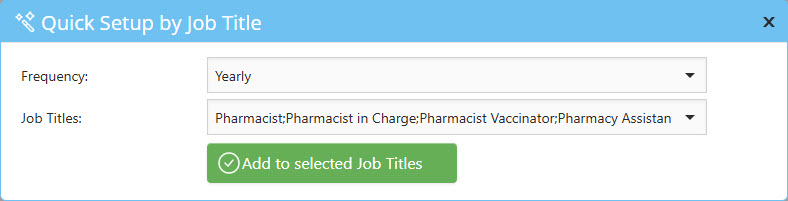
When you set these review requirements or if they are here as the SOP was imported with them, they will show in the Review SOPs screen and staff with either the AuditLink or ContentReviewer role will be able to confirm that they have read and understood this SOP.
Where a task needs to be completed regularly the system can prompt you. To enable the prompting simply tick Task requires monitoring.
Task frequency
You can set a frequency
Next Task to Do Date
Choose a date when the task must next be complete
Staff member responsible
Choose a staff member who is responsible for carrying out the task. See View Staff for adding staff
Task details
Enter the details of the task. You can use formatting and highlighting etc. like just like other sections like Purpose and Procedure.
Task Log
You can add a record here to keep track of the tasks. Many pharmacies will use a paper log.
Audit Requirements
Additional Information detailing what is required for Audit.
SOP Actions
Section titled “SOP Actions”Saving your changes

Changes made to detail such task logs or staff reviews are saved when you close their edit form.
You MUST save changes to the main SOP by clicking the big Save button.
Cancelling Changes

Cancel any changes to details such as purpose and procedure and close the form.
Preview

Click to preview this SOP
Close

When you are done, Click the close button and you are returned to the View Standard Operating Procedures page where you can choose another SOP to work with or add a new SOP. You can also choose another menu item to close.
More Information
Section titled “More Information”Merge Fields
Section titled “Merge Fields”GuildLink supports basic merge fields to allow SOPs to be reused. If you have multiple sites you can copy content between sites but that’s not much use if you then have to customise the content again. This is where merge fields are useful. The following merge fields can be used in the various SOP editors and their values are substituted at print
SiteName – The current site name is inserted
Today – The current date is inserted
Copying Content from MS Word
Section titled “Copying Content from MS Word”Sometimes you will want to copy existing content from other software like MS Word.
• All HTML text editors such as Edit SOP Purpose now have a new button paste from Word to help with removing MS Word specific formatting whilst retaining most of the formatting. This should make moving text into a GuildLink item much faster and easier.
• Note that due to the different formats and the very MS specific formatting it may not be 100% reliable.

The HTML editor toolbar
If you are pasting text that contains bullet points it’s important to understand that the bullet is not a real bullet and you should highlight the lines and click the bullets button.
Want some more space?

The full screen button (short cut F11) lets you expand the editor to fill the entire screen.