
Edit Site Users
The Security System
Section titled “The Security System”In this screen site admin’s can add new users and they can control the security rights of users for each site.
It’s import to understand how roles work before getting started. By default a user will belong to some PSL controlled roles that control if they can access modules within GuildLink such as GuildLink and AuditLink. If more modules are created then more roles will be created to manage access.
If a user belongs to a role then they will have access to sections of the system that are relevant. If the user does NOT belong to a role then they will either not see the menu item or they will not be able to such as AuditLink.
When a new site is added it starts out inactive and PSL must activate it.
When the site is activated the site admin has the following roles added
GuildLink – Controls access to GuildLink as a whole
AuditLink – Allows access to Edit SOPs etc.
User roles apply across all sites. If you let a user edit and delete in one site, they can do that in all sites. If you need separate control in each site then you should add additional user logins for each site for those users.
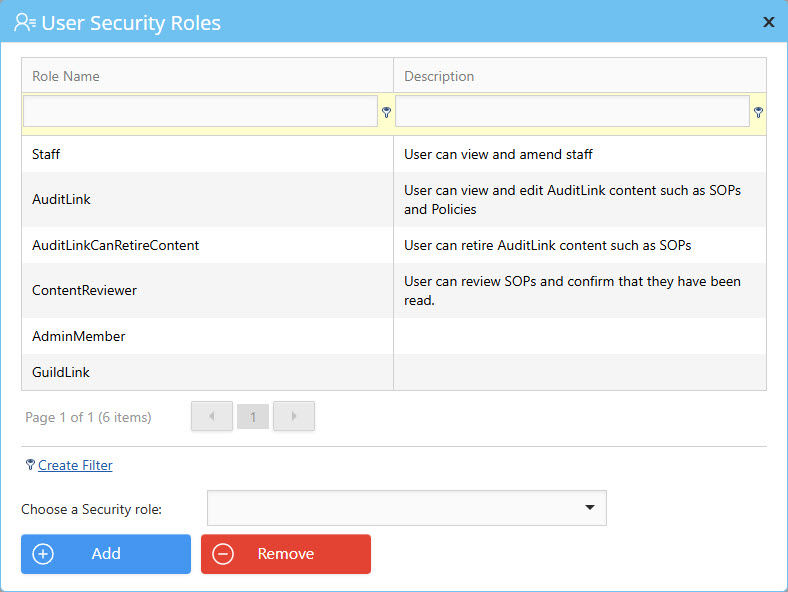
Click expand on any user to see what roles they already have

Choose a security role
Click Add to Add the role
Click Remove to remove it
The role is added or removed and the grid refreshes.

Click to add a new GuildLink user and optional set them up as a staff member

A user of GuildLink may already be registered where you have more than one pharmacy. Therefore, you will be adding an existing user when you add them to your second pharmacy as then when they login they can choose which pharmacy they wish to work with
If the user you want to add to this site is already registered for GuildLink then simply enter their email address. Click Add Existing User. The user will be sent a notification email.